
Compress Photos Without the Upload Risk

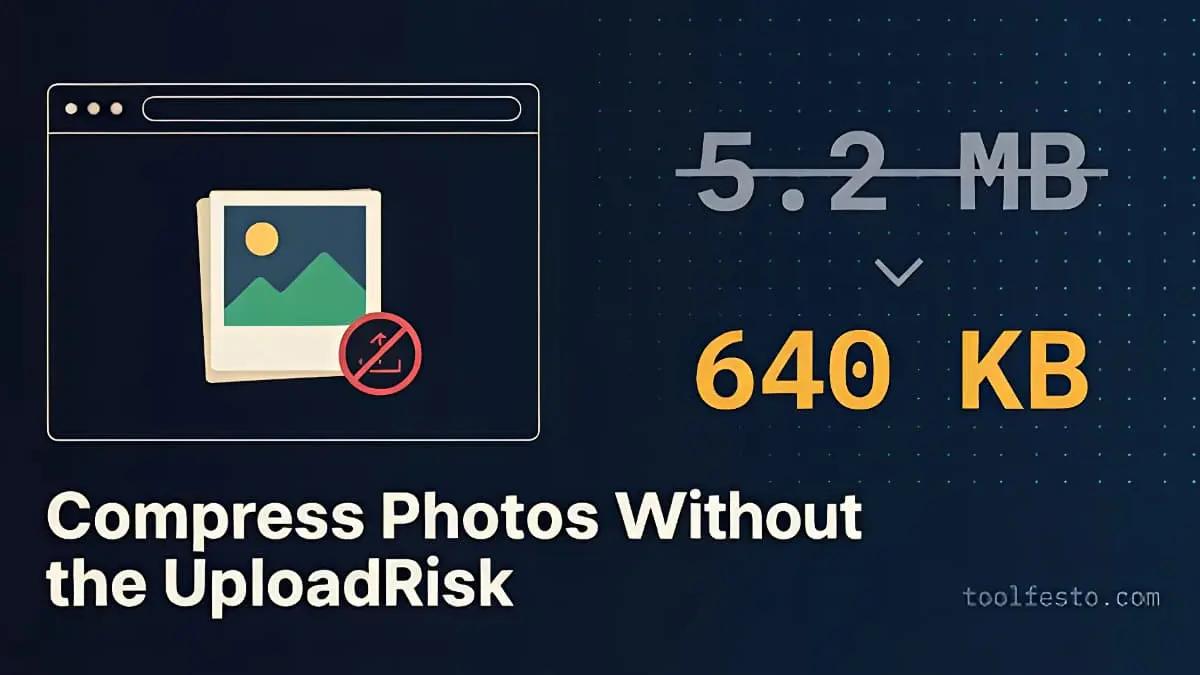
Say you just finished a client mockup that isn't public yet, and before sending it over you want to shrink the file size. You search "free image compressor," click the first result, and drop your file in. For a second, stop and ask: where did that file just go?
The Problem: Every "Free" Compressor Asks You to Trust a Stranger's Server
Most online image tools work the same way. You upload your photo, it travels to a remote server, a backend script compresses it, and a few seconds later you download the result. For a generic blog graphic, that's a non-issue.
But if you're handling unreleased UI designs, proprietary product photography, internal documents, client work under NDA, or anything with a face or an ID number in it, that upload step is a real liability. You're trusting a privacy policy that promises the file gets deleted afterward — with no way to actually verify that from your browser window. And even setting privacy aside, there's the everyday friction: waiting on an upload, waiting on a download, hitting a file-count cap, or getting walled behind a sign-up screen for something that should take five seconds.
The Solution: Compression That Never Leaves Your Browser
That's exactly the problem the Image Compressor on ToolFesto was built to solve — not by promising to handle your files responsibly, but by never asking for them in the first place.
It runs the entire compression pipeline locally, using the HTML5 Canvas API to re-encode JPEG, PNG, and WEBP files (up to 15MB) directly in your browser's JavaScript engine. No server round-trip means there's no privacy question to trust in the first place — the safest server is the one that's never involved.
In practice, that gets you:
- Zero server uploads. Your files never leave your machine. It runs entirely in your browser's local sandbox — it even works offline.
- Near-native speed. No upload/download round-trip means compression happens almost instantly, with no network latency bottleneck.
- No friction barriers. No sign-up, no account, no daily cap. Drop a file in and it's done.
The quality slider defaults to 75% and applies to lossy formats — WEBP and JPEG. PNG is lossless, so the slider automatically disables when you're outputting PNG, since there's nothing left for it to adjust. And if a compression pass would somehow make your file larger than the original — which can happen with certain PNG re-encodes — the tool flags it with a warning and serves your original file instead of a worse one.
It Also Happens to Make You a Faster Developer
Fixing the privacy problem turns out to fix a performance problem too. For frontend developers, asset optimization isn't an afterthought — it's part of production stability:
Network & Core Web Vitals. Smaller image payloads directly accelerate your Largest Contentful Paint (LCP). Fewer bytes over the wire means the browser paints the viewport faster — which matters most on limited mobile networks.
Pipeline & infrastructure efficiency.
- Leaner repositories: committing raw, multi-megabyte exports straight from Figma or a camera bloats your
.gitfolder fast. Compress before staging and keep clones quick. - Snappier CI/CD builds: smaller static bundles mean faster build artifacts and shorter deploys.
- Reduced cloud overhead: optimized formats at scale lower your CDN bandwidth bill.
The Image Optimization Checklist
To get the smallest footprint with the least effort, follow this order before pushing assets to production:
- Resize to display dimensions first. Never serve a 4000×3000px asset if it's only displaying in a 400px-wide card component. Crop and scale down to the actual layout width before anything else.
- Pass it through local compression. Since compression happens by redrawing the image through the browser's Canvas API, it strips things like camera EXIF metadata as a natural side effect, on top of optimizing the color data.
- Pick the right format for the job. WEBP is the modern default — converting from PNG or JPEG typically shows 70–90%+ size reductions while keeping visual quality high. Keep JPEG as your fallback for older clients, and reach for PNG only when you specifically need transparency and don't want WEBP's alpha channel instead.
One honest caveat: if you need to batch-process thousands of images as part of an automated pipeline, a CLI tool or build-step plugin will fit better than any browser tool. This is built for the fast, one-off "I need this compressed right now" moments — which, for most of us, is most of the job.
Stop Handing Your Files to Strangers
A faster, safer web shouldn't require handing over control of your assets to a server you can't see. Next time you're about to upload a photo just to shrink it, don't — drop it into ToolFesto's Image Compressor instead, and keep every pixel exactly where it started: on your device.
Share this article
Enjoyed the read? Share it with your network.